Sign up for systeme.io
systeme.io is the website builder your site runs on. It holds your pages and your form. It also sends your emails.
- Click the orange button below. systeme.io opens in a new tab.
- Type your email to make your account.
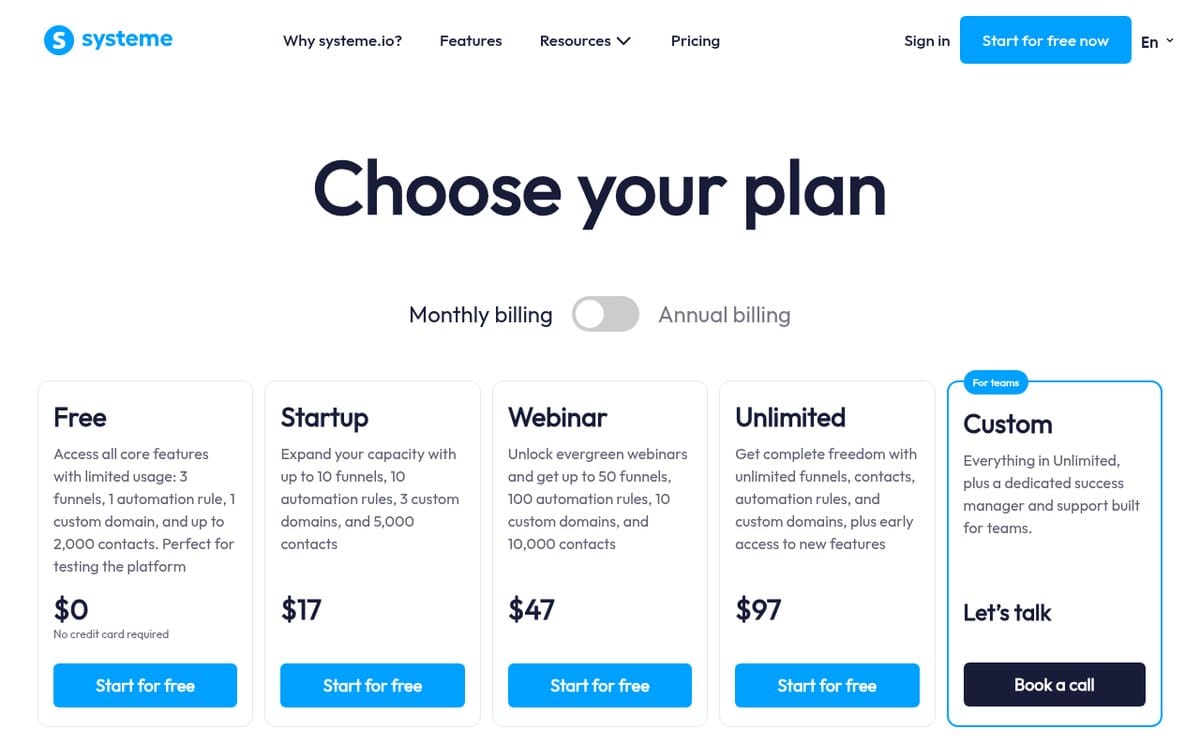
- Pick the Startup plan. It's $17 a month.
Pick the Startup plan. The free plan can't run your lead email. That's the email that thanks the seller and tells you a new lead came in.

Copy the template into your account
- Stay logged in to systeme.io.
- Click the orange Import the Template button below.
- That's it. The site copies over right away. There's nothing to confirm.
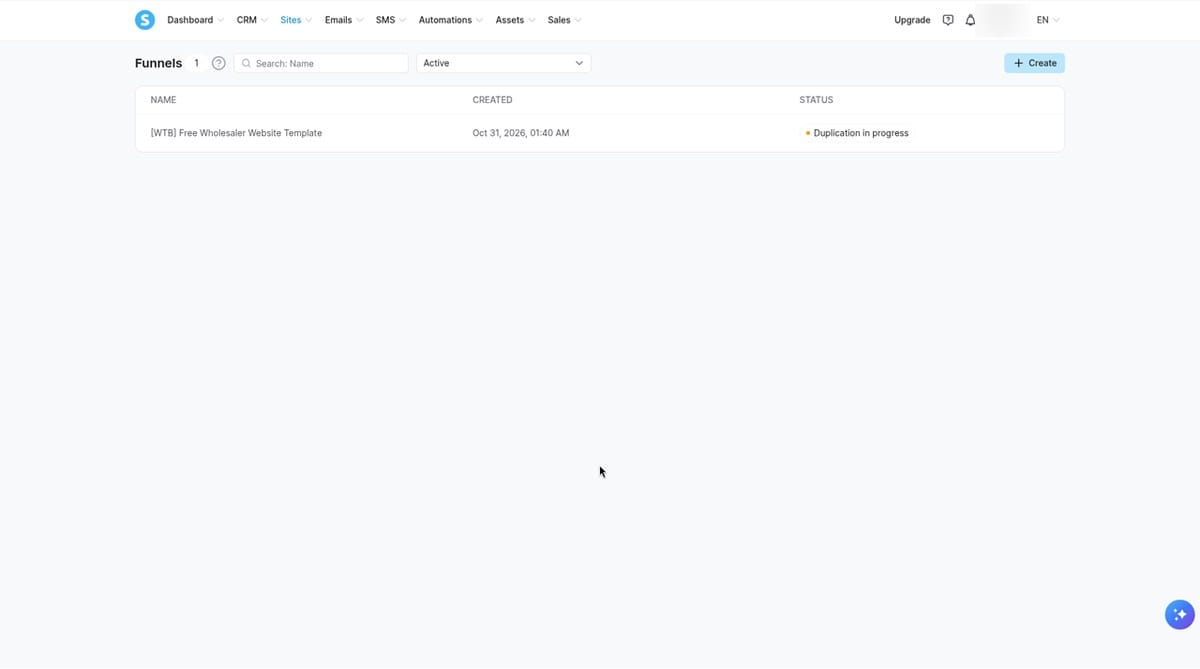
- At the top of systeme.io, click Sites.
- Click Funnels. A funnel is just systeme.io's name for a website.
- Click [WTB] Free Wholesaler Website Template. If it says Duplication in progress, wait a minute.
- On the left you'll see 7 pages. Good. You did it.
Fix your page addresses
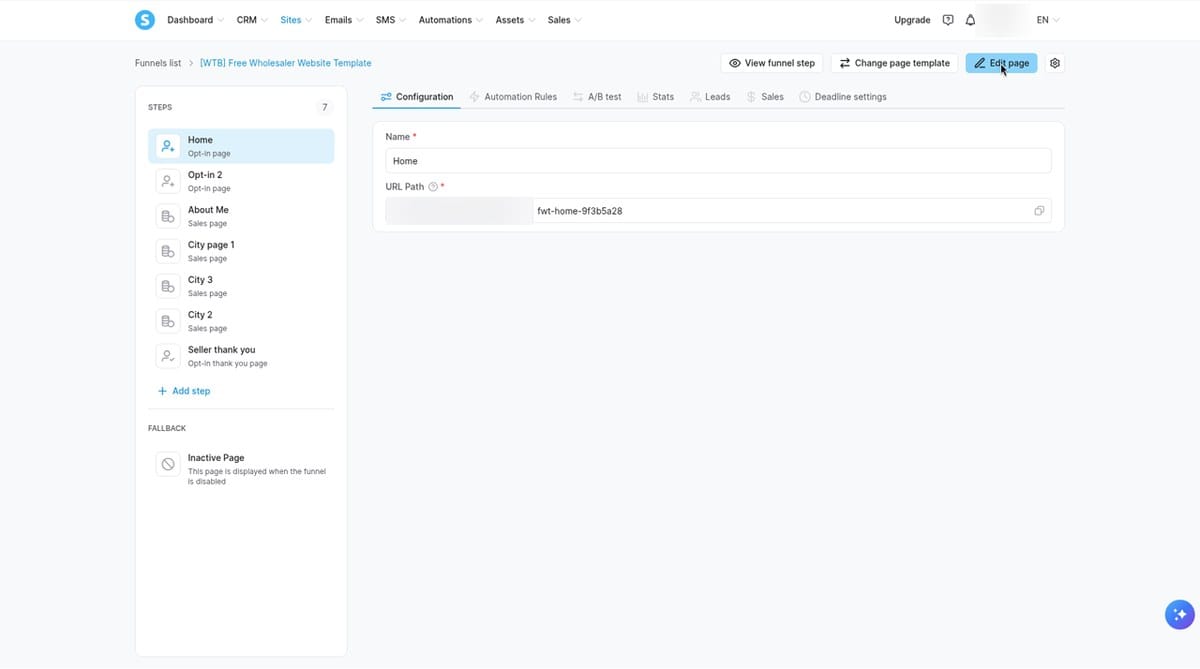
When the template copies over, systeme.io adds a random ending to each page's address. You need to delete it.
Delete the random ending on all 7 pages.
fwt-home-9f3b5a28fwt-homeIf you skip this, your form sends sellers to a broken page. You lose the lead.
- Click the first page on the left, Home.
- Find the box called URL Path. That's the page's web address.
- Click at the end of the address.
- Delete the dash and the random letters and numbers after it.
- Check that it matches the table below.
- Click the next page on the left. Do the same thing.
- Repeat until all 7 pages are done.
| Page name | Address should read | Done? |
|---|---|---|
| Home | fwt-home | ☐ |
| Opt-in 2 | fwt-offer | ☐ |
| About Me | fwt-about | ☐ |
| City page 1 | fwt-city-1 | ☐ |
| City 2 | fwt-city-2 | ☐ |
| City 3 | fwt-city-3 | ☐ |
| Seller thank you | fwt-thanks | ☐ |
Now check your forms.
- Click Home on the left.
- Click Edit page at the top right.
- Click the form on the page.
- On the left, find where it says what happens after someone sends the form.
- Make sure it goes to /fwt-offer.
- Click Save. Then click Exit.
- Do the same on Opt-in 2. Its form should go to /fwt-thanks.
Test your form once. Open your Home page. Type in a test address and your email. Click the orange button. Fill out the next page too. You should end up on the thank-you page. If you see an error page, check your addresses again.
Put in your info (YOUR DETAILS box)
Each page has one small box at the top called YOUR DETAILS. You type your info there once. It fills in the whole page for you.
- Click Home on the left.
- Click Edit page at the top right.
- Click the gray dashed box at the very top. It says YOUR DETAILS.
- Look for the orange Raw HTML tab above the box.
- Click the gear icon at the right end of that tab.
- Click the blue Edit code button.
- A box called HTML opens with the code.
- Find the lines above STOP EDITING HERE.
- Change only the words inside the quotes.
- Put in your company name, first name, city, state, county, phone and email.
- Put in your street, zip and the year you started.
- Put in up to 6 nearby cities you buy in (area1 to area6).
- Click SAVE at the bottom of the HTML box.
- Click Save at the top right of the page.
- Click Exit.
- Open the live page. Check your name, city and phone show up.
company: "Sunshine Home Buyers LLC",
ownerName: "Jane",
city: "Tampa",
state: "FL",
phone: "(813) 555-0123",
...
/* STOP EDITING HERE */
Only change the bold part. Leave everything else alone.
Keep the quote marks and the commas. Only change the words between the quotes. If you delete a quote or a comma, your info won't show up.
Don't change anything below STOP EDITING HERE.
Do this on every page. That's Home, Offer, Thank You, About Me and all 3 city pages. Each page has its own YOUR DETAILS box.
On each city page, also fill in thisPageCity. Type the city that page is about, like "Brandon". On the other pages, leave it as "".
Your photos (you can skip this)
The sample photos work fine. To keep them, leave ownerPhoto and heroPhoto as "".
The photos are built into the page code, so clicking a photo on the page won’t let you change it. To use your own photo:
- Click Files in your systeme.io dashboard.
- Upload your photo.
- Click the … next to your photo.
- Click Download.
- If the photo opens in a new tab, copy the web address at the top of that tab.
- It starts with https://d1yei2z3i6k35z.cloudfront.net/
- Go back to the YOUR DETAILS box.
- Paste it between the quotes after ownerPhoto for your own photo.
- Or paste it after heroPhoto for the big top photo.
- Click SAVE, then Save at the top right.
Some words in [BRACKETS] are not in the box, like the reviews and the "What we see most" text. Click those on the page and type over them.
Turn on your lead email
This sends each seller a short "we got your info" email. It can also email you when a new lead comes in.
The template did NOT copy your lead email. You must do this step. If you skip it, sellers get no email and you get no alert.
1. Make a tag. A tag is a label that marks someone as a lead.
- At the top, click CRM.
- Click Tags.
- Click to make a new tag.
- Type Motivated Seller Lead. Save.
2 and 3. Make the email and the automation. An automation (systeme.io calls it a workflow) does things for you when a seller sends your form.
- At the top, click Automations.
- Click Workflows.
- Click to make a new workflow.
- For what starts it, pick Funnel form subscribed. Then pick your template and the Opt-in 2 page.
- Add a step: Add tag. Pick Motivated Seller Lead.
- Add a step: Send email. Make a new email. Copy and paste the email below. Put in your name, company and phone.
- Want an alert for you? Add a step: Send email to specific address. Type your own email.
- Click save.
Hi {first_name},
Thanks for sending us your property details. We got them.
Someone from [YOUR COMPANY] will call you within 24 hours to ask a few quick questions about the house. There is no cost and no obligation.
If you would rather talk now, call or text us at [PHONE].
Thanks,
[YOUR NAME]
[YOUR COMPANY]
[PHONE]
Turn the workflow ON. When you're done, switch it on. If it's off, nothing gets sent.
The Startup plan has 10 automations. The free plan has only 1.
Connect your domain
Your domain is your own web address, like yourname.com.
- In systeme.io, open your settings. Find custom domains.
- Add your domain. Follow the steps systeme.io shows you.
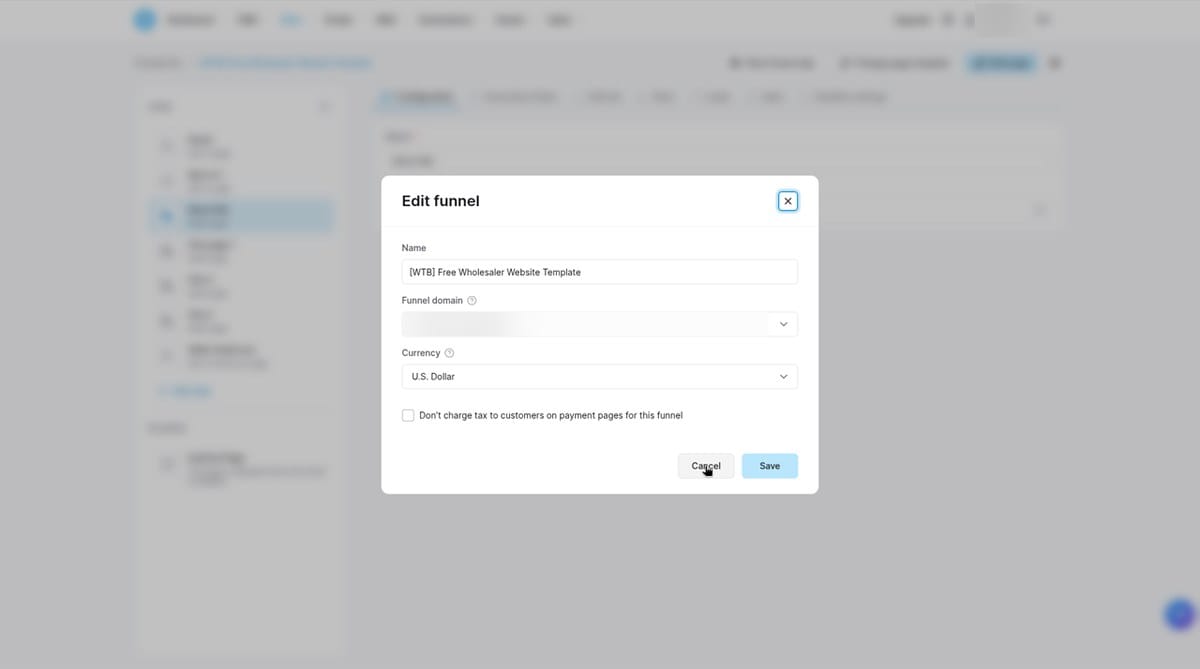
- Click Sites, then Funnels.
- Click your template.
- Click the gear at the top right.
- Under Funnel domain, pick your domain.
- Click Save.
Quick checklist
- ☐Startup plan picked
- ☐Template imported
- ☐Random endings deleted on all 7 pages
- ☐Form tested
- ☐YOUR DETAILS box filled in on all 7 pages
- ☐Lead email workflow ON
- ☐Domain connected
Meet Sy the Site Bot
Sy can do all of this for you, and build more sites too. Sy is a Grok Bot that works inside your systeme.io account.